

Katamereka Tools – An email lands saying a shop you used years ago “experienced a security incident.” Before panicking, check exactly which breaches your address appears in, then fix the accounts that matter.
Two free tools do most of the work: Have I Been Pwned for your email address, and Google’s Password Checkup for your saved passwords. This guide reflects both as of October 27, 2026, plus the US Federal Trade Commission’s breach advice.

Search Your Email on Have I Been Pwned
Have I Been Pwned (HIBP) collects data from known breaches so people can see where their details were exposed.
- Go to haveibeenpwned.com.
- Type one email address into the search box.
- Read the list of breaches it returns, including what kind of data leaked.
The site’s FAQ says searches aren’t logged and travel over an encrypted connection. It does still run analytics and performance monitoring, so the page isn’t completely data-free.
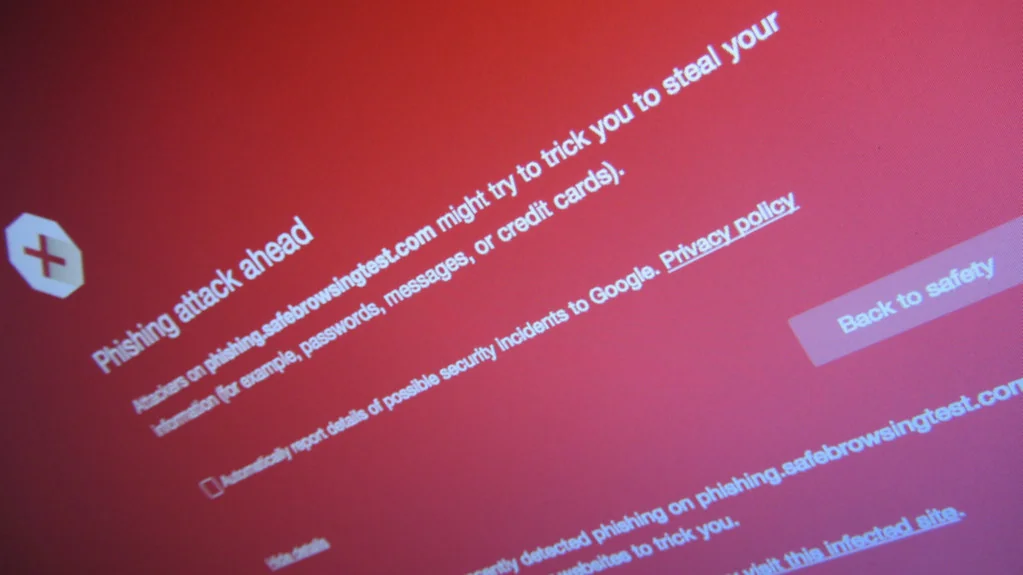
“Pwned” is gamer slang for “owned,” meaning compromised. It doesn’t mean someone is inside your account right now.
See Hidden and Future Breaches
Some breaches never show up in a public search.
HIBP marks certain leaks as sensitive and shows them only to the verified owner of the address. Sign in to its dashboard, click the link in the verification email, and look under Breaches in the Personal section. The FAQ lists 89 sensitive breaches.
For future leaks, use the Notify Me service. HIBP stores the address, the signup date, and a random token, then emails you if the address turns up in a new breach.
Check Your Saved Passwords Too
An email search tells you where you were exposed. Google’s Password Checkup tells you which saved passwords are actually unsafe.
In Chrome on a computer, select More > Passwords and autofill > Google Password Manager, then choose Checkup on the left. In other browsers, open passwords.google.com and select Go to Password Checkup, then Check passwords.
Google sorts problems into three groups:
| Warning | What it means |
|---|---|
| Compromised | The username and password pair has been published online |
| Reused | The same password protects several accounts |
| Weak | Easy to guess, such as a single word or keyboard pattern |
Fix What the Results Show
Start with the accounts that could cost you money or lock you out of everything else.
- Change the breached site’s password right away, per the FTC‘s data breach alert.
- Change every other account that used the same or a similar password.
- Turn on multi-factor sign-in, ideally with an authenticator app or security key.
- Let a password manager create unique passwords so you don’t have to remember them.
The FTC explains why step two matters. Criminals take a password from one breach and try it on other accounts, such as your bank.
Say your old shopping password was also your email password. Changing only the shop’s login leaves the more important door open.
If Someone Already Used Your Data
Changing a password doesn’t erase the breach. HIBP notes the record stays, though its opt-out can hide it from public searches.
In the US, report accounts or purchases you didn’t make at IdentityTheft.gov, which the FTC runs. Outside the US, contact your bank first, then your national consumer protection or cybercrime agency.
Watch for follow-up scams too. A breach notice is a favorite template for phishing, so open the company’s site yourself instead of clicking links in the email. Google gives the same advice for its own alerts: confirm them inside Password Checkup.
A breach you know about is a problem you can fix; the risky one is the password you still reuse.
Komentar Ditutup! Anda tidak dapat mengirimkan komentar pada artikel ini.