

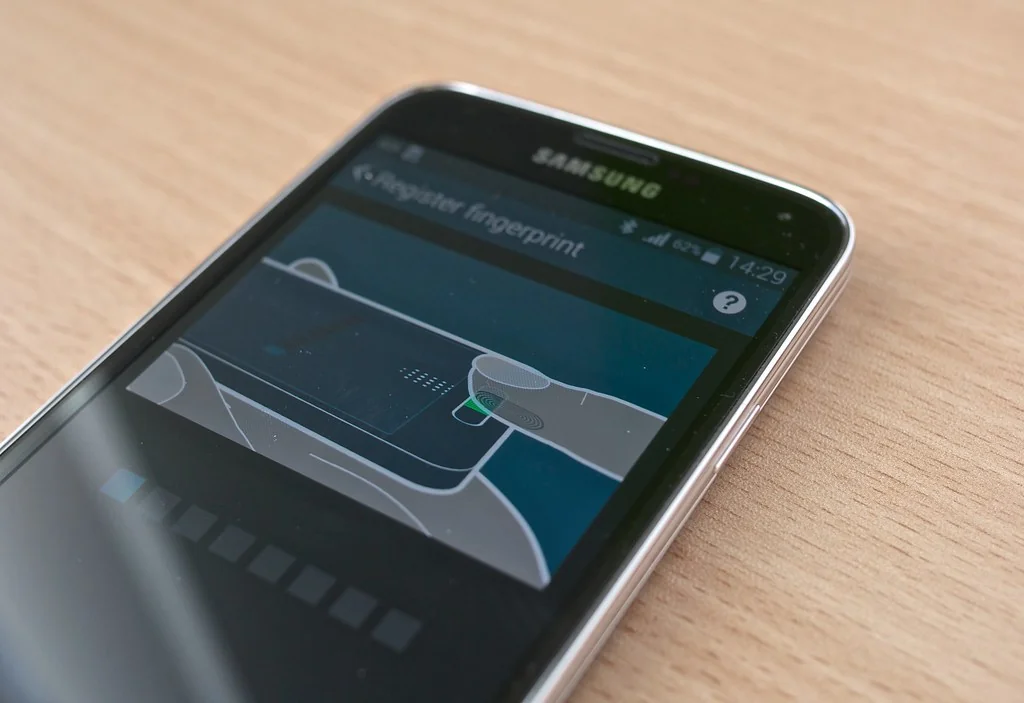
Katamereka Tools – In a 2024 survey commissioned by the FIDO Alliance, 53% of people said they had turned on passkeys for at least one account. A passkey is a login that swaps the password for the device’s own unlock: a fingerprint, a face scan, or a PIN.
That number keeps growing because Google, Apple, and Microsoft now build passkeys into their systems. This explainer covers how they work, why scam sites can’t steal them, and what happens if you lose your phone.
A Key Pair, Not a Secret Word
A passkey is a pair of matching digital keys created for one account on one website or app.
At registration, the device keeps the private key and sends only the public key to the service, according to Apple‘s platform support guide. The two keys work like a lock and its only key: the service can check the login, but it never holds anything worth stealing.
Signing in works as a quick challenge. The site sends a puzzle, the device solves it with the private key once unlocked, and the site checks the answer.
Why Phishing Sites Can’t Use It
Passkeys were designed to resist phishing, says the FIDO Alliance, the industry group behind the standard.
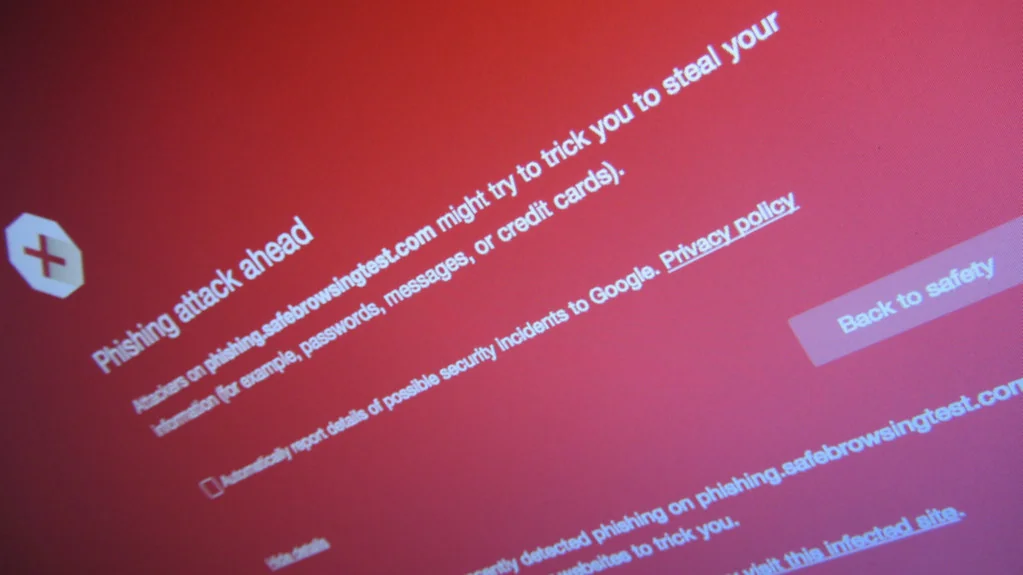
Each passkey is tied to the real website it was made for. Say a fake “bank” page copies the real design perfectly. The phone simply won’t offer the passkey there, because the address doesn’t match.
There’s also no password to leak. Google notes that passkeys can’t be copied, written down, or shared, so there’s nothing for a scammer to coax out of anyone.
Where Your Passkeys Live
Private keys stay on the owner’s devices, and fingerprint or face data never leaves the phone, per Google‘s help page.
There are two kinds:
- Synced passkeys are copied between devices by a passkey manager, and the FIDO Alliance says that syncing is end-to-end encrypted.
- Device-bound passkeys never leave one device, such as a hardware security key.
On iPhone, iPad, and Mac, passkeys sit in the Passwords app and sync through iCloud Keychain, which Apple says is end-to-end encrypted with keys Apple doesn’t know. Android phones and third-party password managers can store them too.
What You Need to Use One
Most phones and laptops from the last few years qualify.
| Device type | Minimum version Google lists |
|---|---|
| Computers | Windows 10, macOS Ventura, ChromeOS 109 |
| Phones | Android 9, iOS 16 |
| Browsers | Chrome 109, Safari 16, Edge 109, Firefox 122 |
A screen lock must be turned on. On Apple devices, iCloud Keychain has to be on as well.
Create a Passkey for Your Google Account
Google’s version makes a good first passkey because so many other logins depend on a Gmail address.
- Go to myaccount.google.com/signinoptions/passkeys.
- Tap Create a passkey, then confirm.
- Unlock your device with your fingerprint, face, or PIN.
Don’t do this on a shared or work computer. Anyone who can unlock that device could then get into the account.
If You Lose Your Phone
Losing a phone isn’t a lockout with a little planning.
Sign in from another device, then remove the passkey belonging to the lost one on the same Google page. Synced passkeys keep working on the other devices.
Keep at least one backup way in, such as a second device or a hardware security key. The FIDO Alliance points out that a security key can act as a recovery option when synced devices are gone.
One honest limit: not every site supports passkeys yet, so password managers aren’t retiring just yet.
Set up one passkey today, on the account that would hurt most to lose.
Komentar Ditutup! Anda tidak dapat mengirimkan komentar pada artikel ini.